
The TV score overlay
Keep your scores on screen while you watch the game on Google TV: a small see-through score box in a corner, a pop-out for your big plays, and a quarter-screen view for multiview.
Updated October 30, 2026
The score overlay is part of the MFL Football app on Google TV. It draws a small, see-through score box in a corner of whatever you're watching, such as YouTube TV, NFL Sunday Ticket or a local channel, so your fantasy scores stay on screen without covering the game. The game's sound keeps playing the whole time. If you haven't installed the app yet, start with MFL Football on your TV.
Turn it on
- Which TVs. The overlay needs the MFL Football app, so it works on Google TV and Android TV: most Sony TVs, many TCL, Hisense and Philips TVs, a Chromecast with Google TV, a Google TV Streamer or an Nvidia Shield. Fire TV, Samsung and LG don't let one app draw over another, so use the Broadcast board in your TV's browser there instead. Roku has no browser at all; plug a Google TV stick into a spare HDMI port and use the overlay on that. MFL Football on your TV covers both.
- Open MFL Football and press Back. On the board, press Back until a menu asks Keep your scores on screen? Pick Show scores at the top or Show scores at the bottom. The app closes and the score box appears over the home screen.
- Then start the game. Open YouTube TV, or whatever you watch on, and start the game. The score box stays on top and the game's sound plays as normal.
- Start the overlay before the game. Pressing Home while a game plays sends the game to the background, so turn the scores on first. If the game is already on, press Home, turn the scores on, then go back into your TV app; the game picks up where it was.
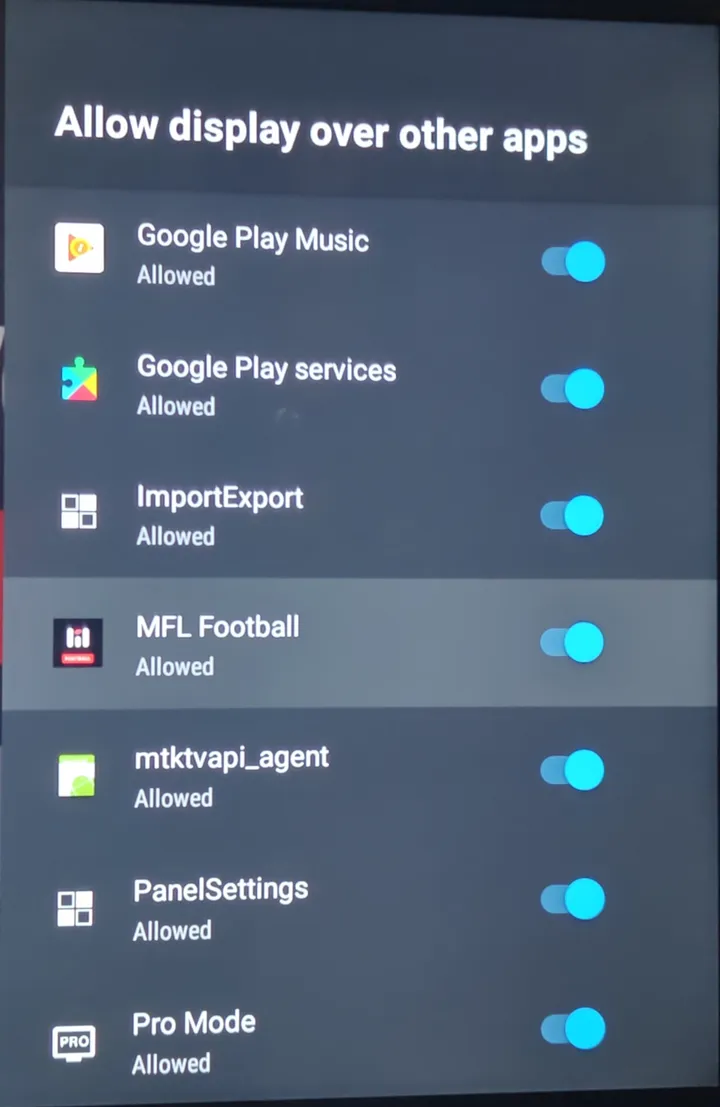
- The first time only. The TV asks to let MFL Football show over other apps. Press OK, turn it on, then press Back. If it doesn't ask, or you said no, turn it on yourself: Settings › Apps › Special app access › Display over other apps (on Sony and most Google TVs; some TVs call it Appear on top, and older ones keep it under Apps › Security & restrictions). Find MFL Football in the list and switch it to Allowed. The setup steps in MFL Football on your TV cover TVs without that switch.
- No menu? If Back just closes the app, your TV has an older version. Update MFL Football from the Play Store.
The Score overlay tile and voice
- A shortcut on some TVs. MFL Football also installs a Score overlay tile. Most Google TV home screens show only one tile per app and hide it, but some Android TVs (Nvidia Shield, older Sony and Philips TVs, Android TV boxes) list it under Apps. If yours does, opening it turns the ticker on without leaving your game.
- Voice. Hold the voice button on the remote and say "Open Score overlay". Whether this works depends on the TV finding that tile; if it opens a search or the MFL Football board instead, use the Back menu.
- Pin it. If you can see the tile, highlight it, hold OK and pick Add to favorites (or Move) to keep it on the home screen.
Reading the score box
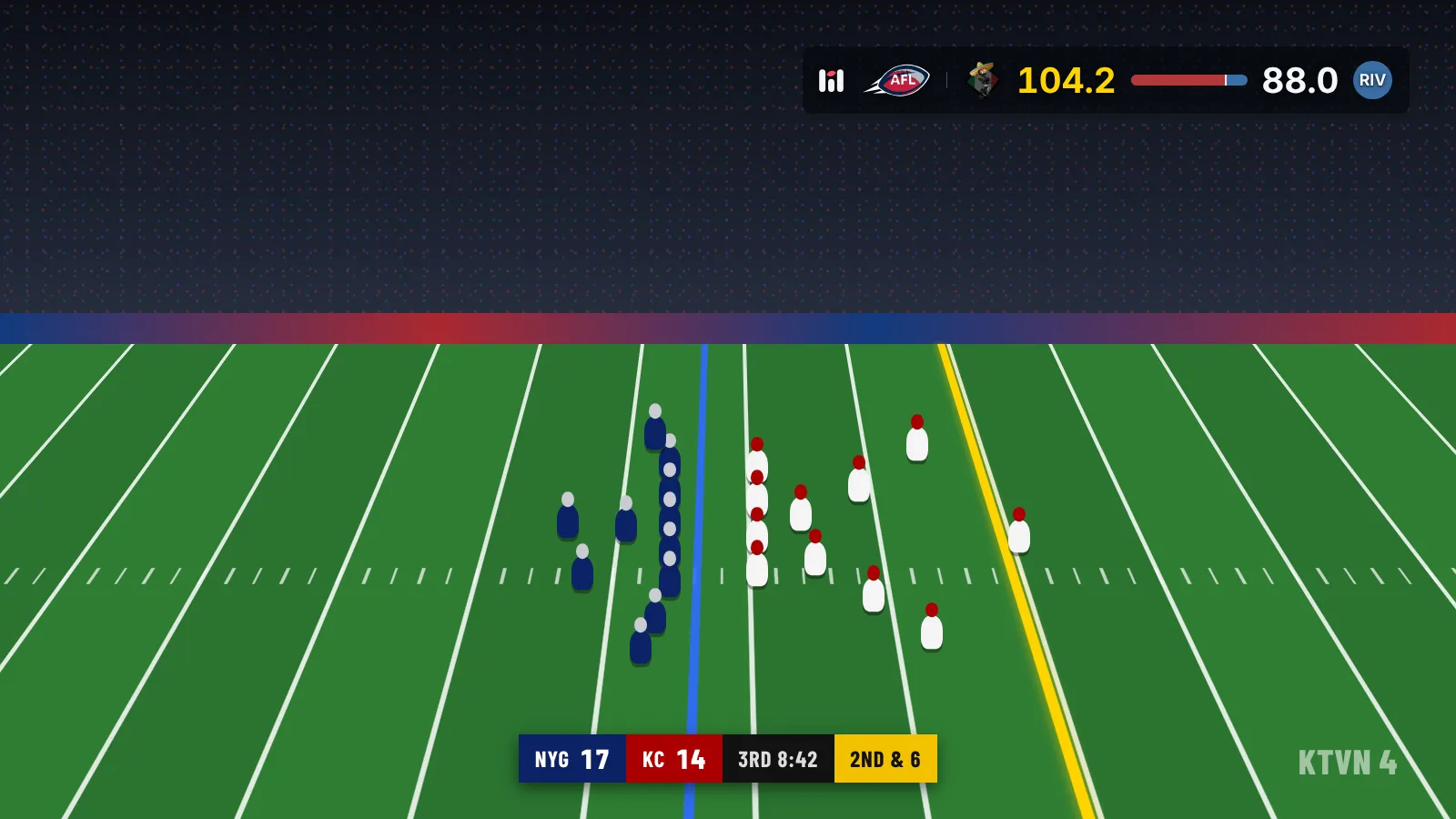
- One matchup at a time. The box shows the league's logo, then your team's logo and score, a win bar, and your opponent's score and logo. The leading score is gold.
- The win bar. Your team's color fills your chance to win and your opponent's color fills the rest. Once a game is decided, the loser's color disappears.
- It rotates. If you're in more than one league, or have two games in a doubleheader week, the box moves to the next one every 8 seconds. The dots on the right show which one you're on.
- It never takes the remote. Every button press still goes to your TV app, so you can pause, rewind and change channels as usual.
Big plays
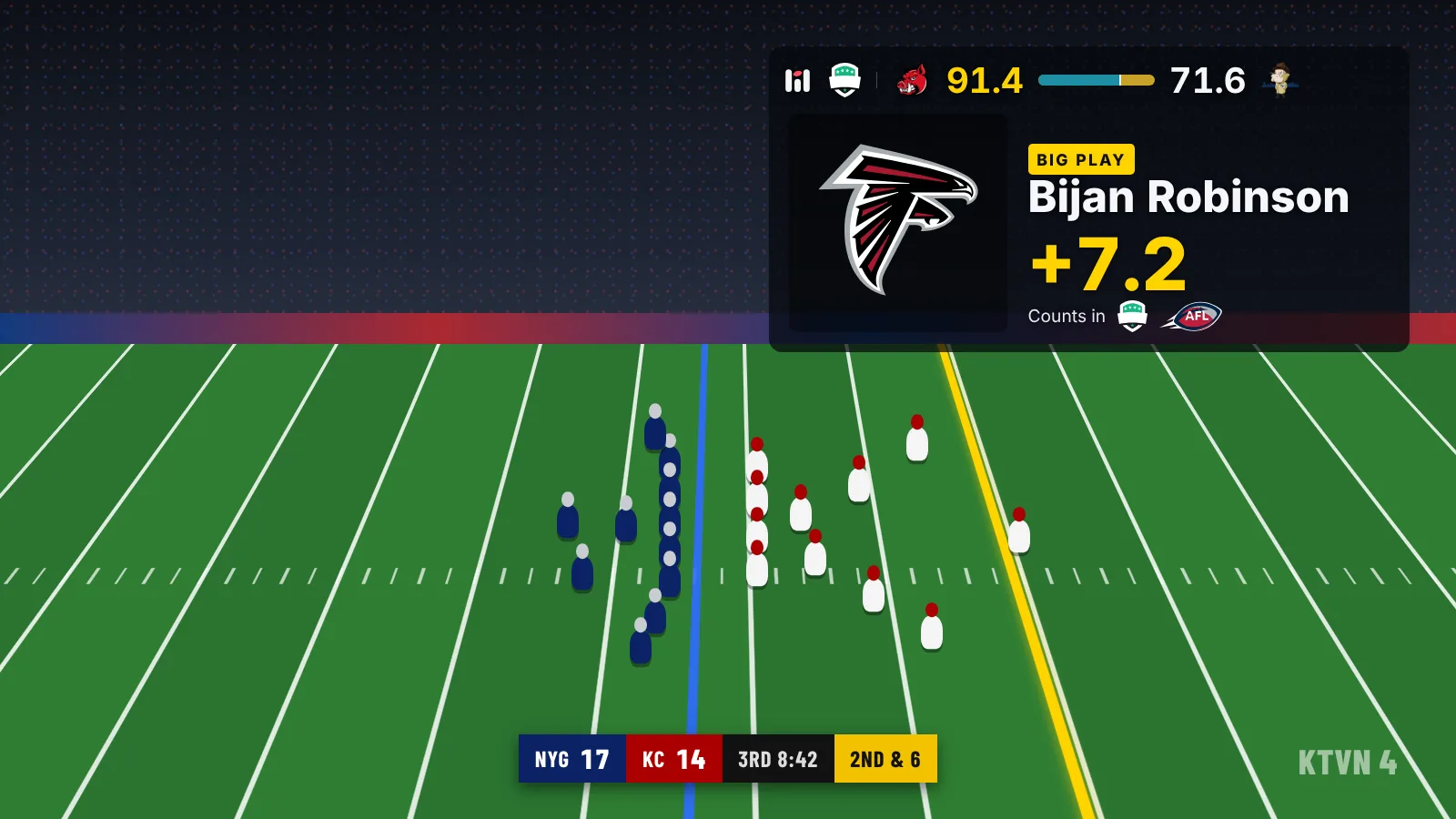
- Only your players. When one of your own starters scores more than 3 fantasy points on a single play, the box grows into its quarter of the screen with a Big play card. Your opponent's players never trigger one.
- What it shows. The player's headshot on his team's color (or his team's logo when there's no headshot) and name, what happened when the play-by-play has it ("48 Yd pass from Sam Darnold"), the points it was worth, and your matchup's new score along the top.
- Several leagues. If you start the same player in more than one league, you get one card, with a Counts in row showing each league's logo.
- Timing. The card shows up when the fantasy scoring updates, usually within a minute of the play, and stays for about 7 seconds before the box shrinks back. Several big plays at once take turns.
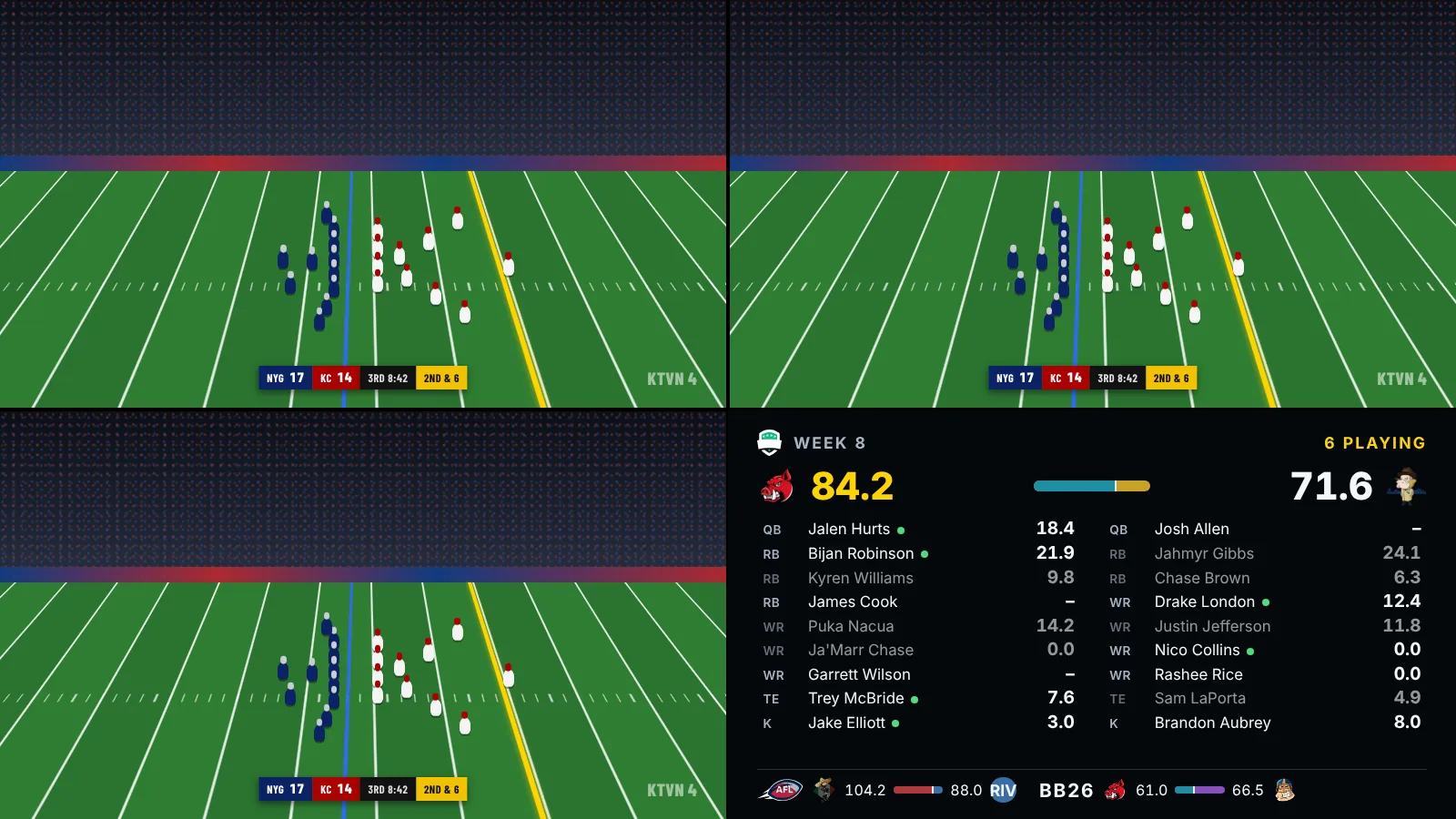
Quarter screen, for multiview
- Fill a whole quarter. When YouTube TV's multiview shows three games and you don't need the fourth, put your fantasy scores there. On your phone, open the remote (the MFL Football app on Android, or mfl.football/live/broadcast/remote, signed in as the owner who paired the TV) and pick Quarter screen. Small puts the score box back.
- What's in it. Both starting lineups with each player's points. A green dot marks who is playing right now, and players whose games are over are dimmed. Your other matchups sit along the bottom, and the main one changes every 20 seconds. Next game on your phone moves it sooner.
- Big plays here. The player's row lights up in gold instead of a pop-out.
- It stays. Quarter screen stays up until you pick Small, even after the TV restarts the overlay. Your TV remote keeps working on the show the whole time.
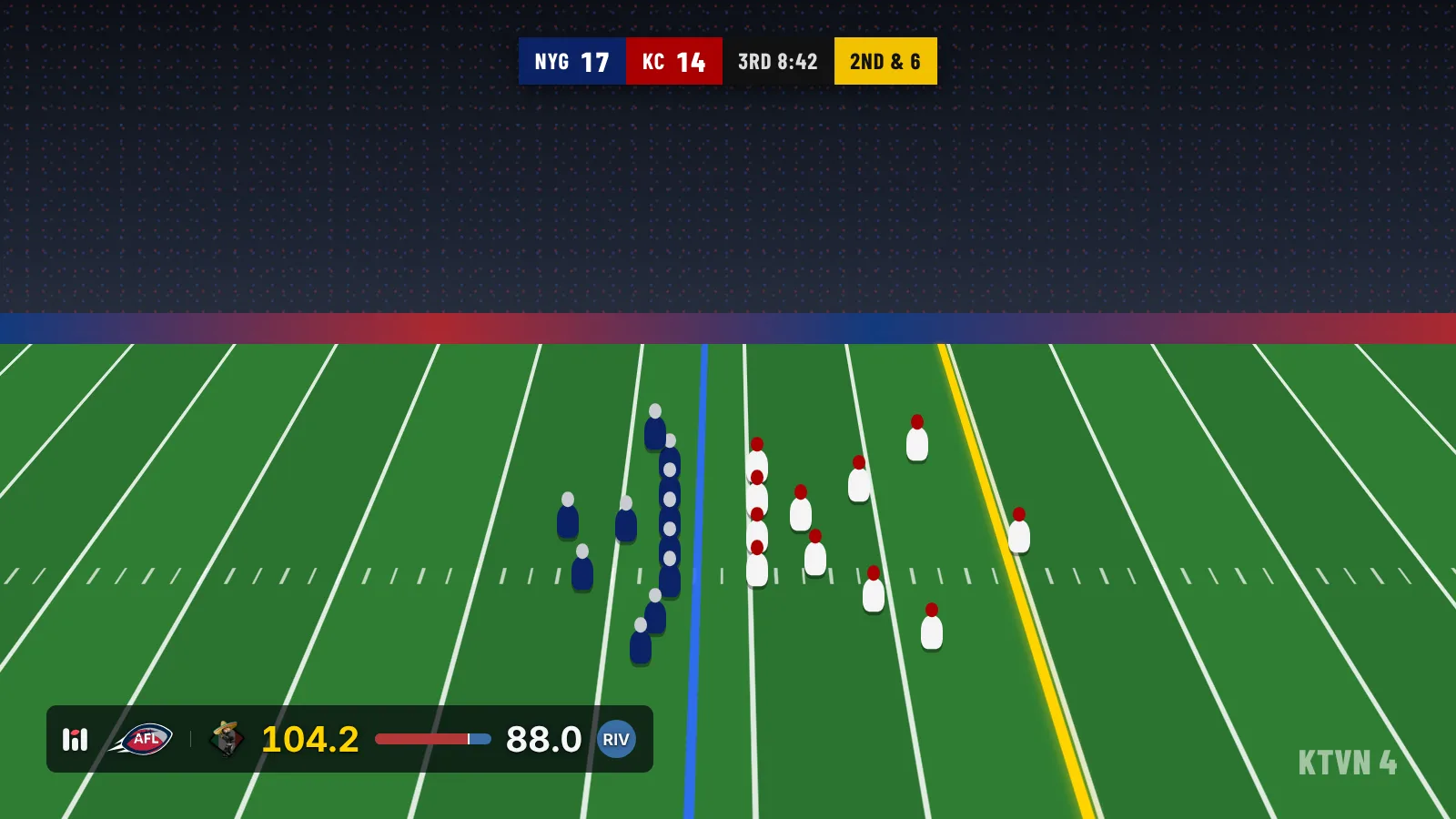
Move it to another corner
- From your phone. On the live board on your phone (mfl.football/live/broadcast), open TV remote and tap Top, Bottom, Left or Right. You can also open MFL Football on the TV, press Back and pick Move scores to the top or bottom.
- Pick the clear corner. Most networks put their score banner along the bottom, so the upper right is usually best, but some broadcasts and streaming apps use the top.
- It remembers. The TV keeps your choice, so the box comes back in the same corner next time.
The full panel and Watch list
- Open the Score overlay again on a TV that shows its tile to open both lineups with the TV remote, then press OK to bring up the full panel down the left side: your score, win chance, projections and both starting lineups.
- Watch your players. The panel's Watch list shows the NFL games your starters are in, live games first. Up and Down pick a game and OK opens it through your TV's search, where you choose your TV app. With I have NFL Sunday Ticket ticked in MFL Football settings, every Sunday afternoon CBS and FOX game is marked as one you can open.
- Back returns to the ticker.
Turn it off
- From the Back menu. Open MFL Football, press Back and pick Turn off the score overlay.
- Or from the full panel. With the full panel open, go to the bottom of the Watch list and pick Hide overlay.
- Or turn off the TV. The overlay closes by itself when the screen goes off.
The overlay is new, so tell Brandon what works on your TV and what doesn't.
Message